Documentation
How to Use Keet
Everything you need to know to dictate seamlessly and understand Keet's status indicators.
The Keet Status Indicator
Keet is designed to stay out of your way. When active, a small floating icon appears on your screen so you always know exactly what Keet is doing. Here is what each animation means:
Idle & Ready
Keet is loaded and ready. Just press your hotkey and start speaking.
Recording
Keet is actively listening, so speak naturally. Press your hotkey when you're finished.
Processing & Pasting
You pressed the hotkey to stop. Keet AI is processing your audio and will output the text into your active window.
Error
Something went wrong (e.g., microphone disconnected or the Parakeet model has not been downloaded yet). Check the Keet settings for details.
Configuring Settings
- Windows: Right-click the Keet icon
 in your system tray (lower right) and choose Settings to customize your experience.
 - macOS: Click the Keet icon
 in your menu bar (upper right) and choose Settings to customize your experience.
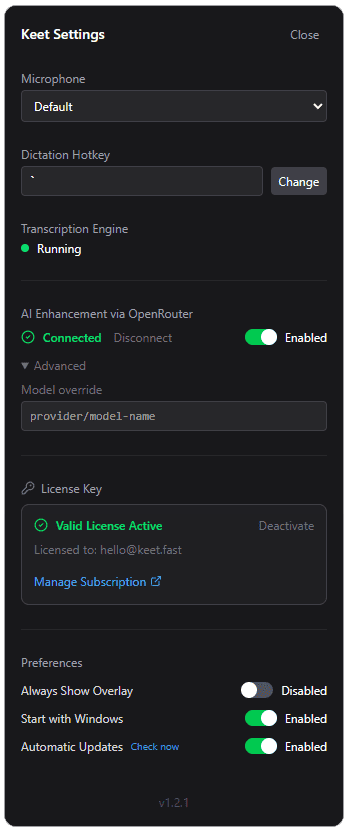
Microphone Selection
Keet automatically detects your system's default microphone, but you can override it here if you use a dedicated desktop mic or headset.
Dictation Hotkey
Choose the shortcut that feels most natural to you. The default is the backtick (`) key, located under the Escape key. You can change this to any single key or combination (like Ctrl+Space or Option+Space). Press this key to start speaking, and press it again to transcribe.
AI Enhancement via OpenRouter
Connect your OpenRouter account to apply an intelligent editorial pass to your local dictations. Keet will automatically cut filler words, resolve mid-sentence rephrasing, and improve overall flow before typing the text. You can toggle this feature on or off globally at any time depending on your current privacy or speed requirements.
The default model is well balanced for everyday use, but you can expand the Advanced section and enter a model identifier in the Model override field. Swap in a cheaper model for everyday drafts, a more capable one for demanding transcription, or access newly released models the moment they appear on OpenRouter.
License Key
Displays your current activation status. If you're upgrading to a new machine, click Deactivate here before uninstalling - this frees up your license so it can be activated on the new device. Use the Manage Subscription link to update billing details or review your plan.
Automatic Updates
- Enabled (Default): Keet will silently check for app updates in the background every 30 days and notify you if a new version is available.
- Manual Only: Disables background checking. You can manually check for updates at any time by clicking "Check for Updates" at the bottom of the Settings menu.
Always Show Overlay
When enabled, the overlay is visible at all times, including while idle. Disable this to keep your screen clean: the overlay will hide when idle and only appear during active use (while recording or processing). This setting defaults to Enabled.
Start with OS
Enable Start with Windows / macOS to ensure Keet is always running silently in the background when you turn on your computer.
Tips & Tricks
- Type as fast as you talk: Keet is fast enough that you can seamlessly switch between typing on your keyboard and pressing the hotkey to dictate a long sentence.
- Punctuation: The Parakeet AI model automatically adds commas, periods, and question marks based on your vocal inflection and pauses. You never need to say "period" or "comma".
- Privacy first: Because everything runs locally, Keet works perfectly even if you disconnect from the internet. Your voice data never leaves your computer.
- Speak, don't edit: With AI Enhancement enabled, let your thoughts flow without worrying about stuttering or changing your mind mid-sentence. Keet will clean it up and deliver a polished draft.